
How to Set Up MCP in Claude Desktop
Current Claude Desktop MCP setup guide for 2026, including local desktop extensions, remote custom connectors, plan caveats, and the common mistakes that break setup.
As of April 23, 2026, Claude Desktop has two separate MCP setup paths: local desktop extensions that run on your machine, and remote custom connectors that are added through the connectors UI. If you mix those up, the setup feels more confusing than it really is.
Anthropic's current local MCP help article focuses on desktop extensions for local servers. Its current remote MCP article describes remote custom connectors as a separate beta flow configured through your Claude account. The short version is simple:
- use desktop extensions for local tools, files, and apps on your machine
- use remote connectors for internet-reachable MCP servers
If you need MCP basics first, go to What Is MCP?. If you want the broader client trade-offs after setup, MCP Client Comparison is the better follow-up.
If you only read one section
| Setup path | Best for | Where you add it | Network path |
|---|---|---|---|
| Local desktop extensions | Local files, local apps, private machine workflows | Settings -> Extensions in Claude Desktop | Runs from your computer |
| Remote custom connectors | Hosted SaaS tools or remote MCP servers | Settings -> Connectors in Claude or Claude Desktop | Connects from Anthropic's cloud |
Anthropic's current desktop-vs-web connectors guide uses almost exactly this split: local desktop extensions for private local work, remote connectors for cloud tools and shared services.
Install Claude Desktop first
Anthropic's current installation guide says Claude Desktop supports:
- macOS 11 or newer
- Windows 10 or newer
That same help article also says desktop extensions are available inside Claude Desktop after install, which is the starting point for the local MCP flow.
Step 1: decide whether you need local or remote MCP
This is the decision that saves the most time.
Choose local desktop extensions when you want Claude Desktop to work with:
- local files and folders
- local applications
- private machine-only workflows
- data you do not want routed through a hosted service
Choose remote connectors when you want Claude to work with:
- cloud tools like project management or comms platforms
- a hosted MCP server
- shared team services
- the same connector across Claude web, Desktop, and mobile
Anthropic's current desktop-vs-web connectors guide explicitly says many users combine both approaches, which is the most realistic production setup anyway.
Step 2: set up a local MCP server in Claude Desktop
Anthropic's current local MCP guide now recommends desktop extensions as the streamlined local path.
The current flow is:
- Open
Settings -> Extensionsin Claude Desktop. - Browse the extension directory or install a custom desktop extension, which
Anthropic now packages as a local
.mcpbdesktop extension format. - Configure required settings such as API keys in the extension UI.
- Use the extension in conversations.
The same help article says desktop extensions support:
- Node.js
- Python
- binary MCP servers
It also notes that Claude Desktop includes a built-in Node.js environment, so some local setups are easier than they used to be.
What changed from older guides
Older Claude Desktop MCP setup posts were built around hand-editing raw JSON. That path still matters for advanced users and existing local setups, but it is no longer the main user-facing experience Anthropic documents for local MCP.
Today, the official local guidance is extension-first.
Advanced note: the older local JSON route still exists
Anthropic's current
remote MCP help article
still refers to local MCP servers configured in Claude Desktop via
claude_desktop_config.json as a separate local mechanism. So if you already
maintain local servers that way, you are not imagining things.
Conceptually, that older local config still looks like:
{
  "mcpServers": {
    "filesystem": {
      "command": "npx",
      "args": ["-y", "@modelcontextprotocol/server-filesystem", "/path/to/folder"]
    }
  }
}
The important 2026 update is that this is the local path, not the remote connector path.
Step 3: set up a remote MCP server in Claude Desktop
For remote MCP, Anthropic's current docs point you to the Connectors UI, not the local JSON config.
The current custom remote MCP article says:
- custom connectors using remote MCP are available on Claude, Cowork, and Claude Desktop
- supported plans are Free, Pro, Max, Team, and Enterprise
- Free users are limited to one custom connector
- the feature is currently in beta
The current connectors guide describes the practical add flow:
- Go to
Settings -> Connectors. - Click the add flow for a custom connector.
- Enter the connector name and URL.
- Add OAuth settings if needed.
- Connect and authenticate.
The most important remote caveat
Anthropic's current remote MCP docs are very explicit about this:
- remote custom connectors are reached from Anthropic's cloud
- your MCP server must be reachable over the public internet
- Claude Desktop will not use the local JSON mechanism as a substitute for remote connector setup
If you are building the remote server yourself, Anthropic's current connector builder docs point developers toward Streamable HTTP first and treat older HTTP plus SSE transport as legacy support.
That is the part older setup guides usually get wrong.
If you have already deployed a hosted server in drio, this is the step where you use the copied MCP endpoint from Connect to AI clients.
Step 4: verify that Claude Desktop actually sees the tools
Anthropic's local MCP help article says you can verify connected MCP servers by:
- clicking the
+button near the chat box and choosingConnectors - checking Developer settings for connection status and logs
That is the fastest sanity check after either setup path.
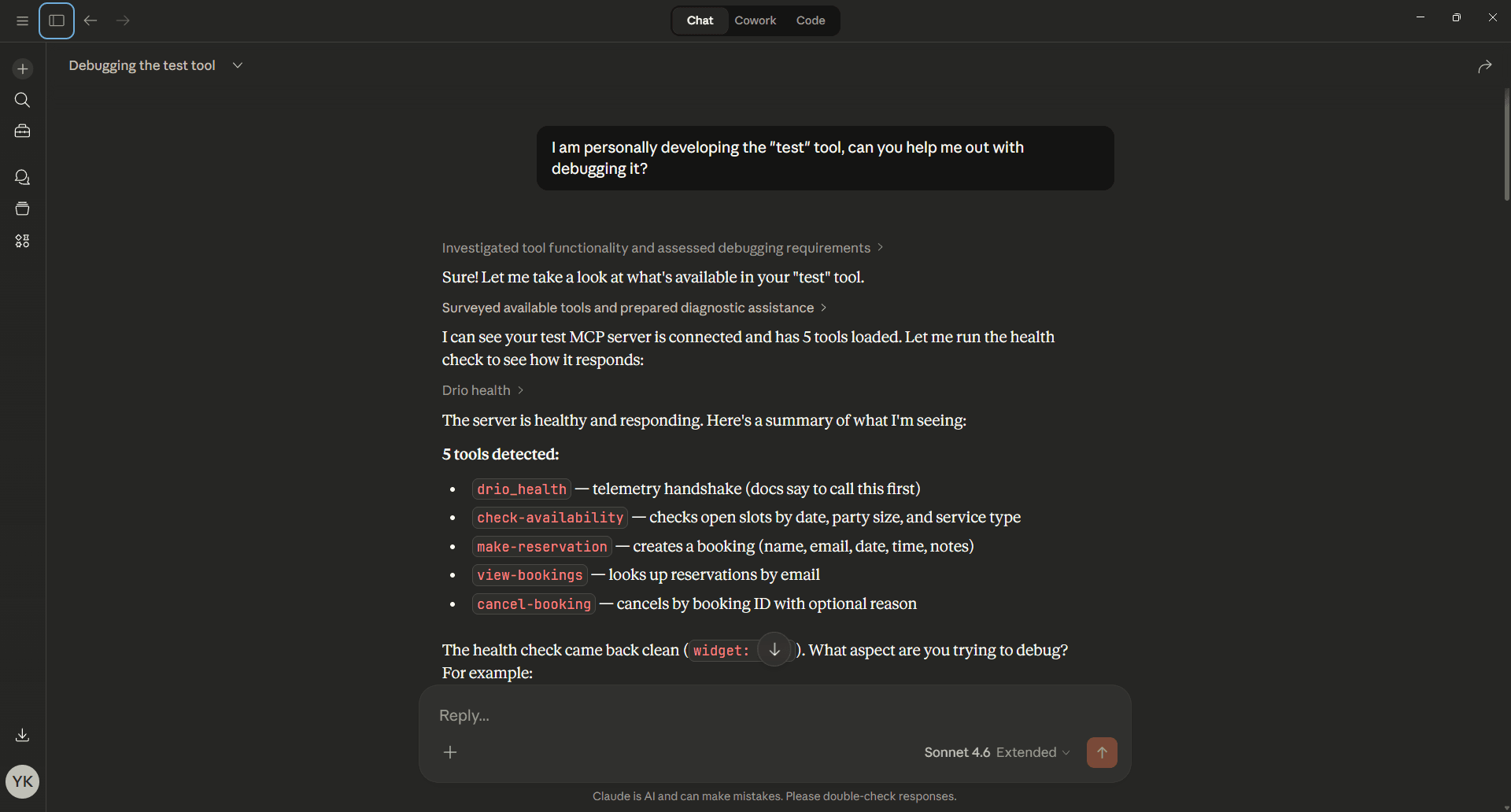
If the server appears but no useful tools show up, the problem is usually with the server itself rather than the Claude UI.
Step 5: know which Claude surface you are actually configuring
This matters because Claude has multiple surfaces now.
Anthropic's current connectors guide says web connectors are available across:
- Claude
- Claude Desktop
- Claude Mobile
- Cowork
But Anthropic's current
remote MCP article
also says local MCP servers configured via claude_desktop_config.json are a
separate local mechanism and are not available in Cowork or claude.ai.
So:
- remote connectors can span multiple Claude surfaces
- local desktop extensions and local config-based MCP are Claude Desktop only
That is the cleanest way to keep the product model straight.
Common mistakes that break setup
Treating remote MCP like a local config problem
If you paste a remote server URL into the older local JSON flow, you are using the wrong setup path. Anthropic's current docs say Claude Desktop will not connect to remote servers that way.
Expecting remote connectors to use your local network
They do not. Anthropic's remote connector docs say the connection originates from Anthropic's servers, not your machine.
If your hosted MCP server sits behind a firewall or private network, it will fail unless you handle the network allowlisting correctly.
Assuming Claude web and Claude Desktop have the same local capabilities
They do not. Local desktop extensions are Claude Desktop-specific. Remote connectors are the portable cross-surface path.
Forgetting permissions and OS prompts
Anthropic's local help article specifically calls out:
- macOS security prompts
- Windows file access permissions
- enterprise policy restrictions for extensions
If a local tool looks installed but fails at runtime, check OS permissions before you debug the protocol.
What to use with drio
If you are using drio, the practical split is:
- build and deploy a remote MCP endpoint in drio
- connect it in Claude through
Settings -> Connectors
That gives you a cleaner path than treating Claude Desktop as a local-only development client.
If you want to compare that same endpoint across clients, go from here to How to Add MCP Tools to ChatGPT or MCP Client Comparison.
Summary
Claude Desktop MCP setup is no longer one single flow. As of April 23, 2026, local MCP is primarily framed as desktop extensions, while remote MCP is framed as custom connectors added through the connectors UI. Local setups run from your machine. Remote connectors run from Anthropic's cloud and need a publicly reachable MCP server.
If you keep that split straight, setup becomes much easier. Pick local for machine-only workflows, pick remote for hosted tools and shared services, and do not use the old local JSON route as a substitute for remote connectors.
FAQ
Can Claude Desktop use both local and remote MCP?
Yes. Anthropic's current docs explicitly describe local desktop extensions and remote connectors as complementary options, and their desktop-vs-web guide recommends combining them when it fits the workflow.
Does Claude Desktop connect to remote MCP servers from my computer?
No. Anthropic's current remote connector docs say remote custom connectors are brokered through Anthropic's cloud infrastructure, not your local network interface.
Can I add a remote MCP server directly in claude_desktop_config.json?
No for the current remote connector flow. Anthropic's custom remote MCP docs say Claude Desktop will not connect to remote servers configured directly that way.
Are custom remote connectors available on free Claude plans?
Yes, in beta. Anthropic's current remote MCP docs say Free, Pro, Max, Team, and Enterprise users can use custom remote connectors, with Free limited to one custom connector.
What should I read after this?
Read MCP Client Comparison if you are choosing between Claude Desktop, Cursor, ChatGPT, VS Code, and Windsurf. Read How to Add MCP Tools to ChatGPT if you want the parallel remote-setup flow on OpenAI's side.
If your server is already deployed and reachable, the next move is not more setup reading. It is testing the real workflow with a few prompts and tightening the tool descriptions until the right tool gets picked consistently.
Get the Builder Brief
Weekly tactical notes on shipping ChatGPT apps, MCP integrations, and product-led distribution.